Introducing the ANBERNIC RG34XXSP
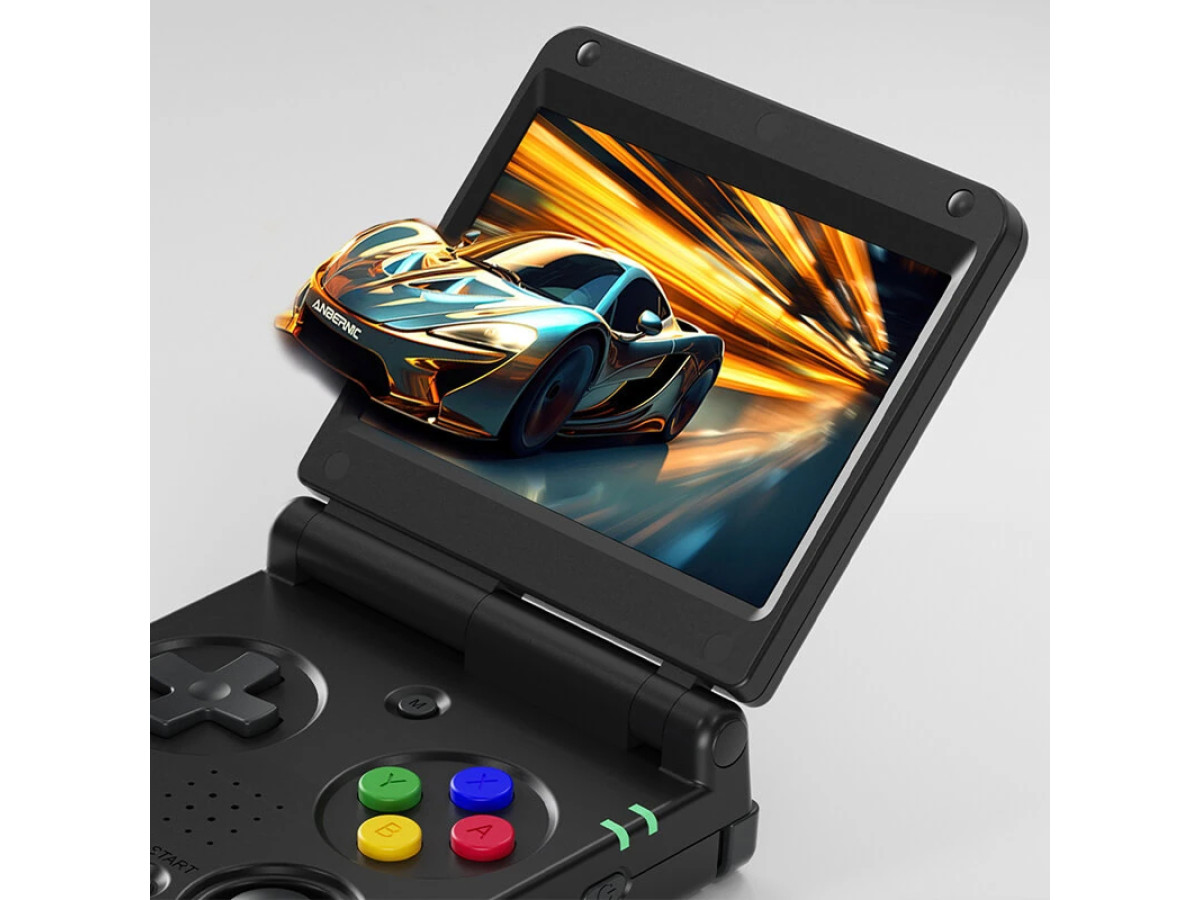
The ANBERNIC RG34XXSP is a compact, portable retro gaming console designed for classic game lovers. The device supports multiple platforms and emulators, allowing you to enjoy games from the NES and SNES to the Game Boy Advance and Sega Genesis right in your hands. The console features a high-quality screen, convenient buttons, and a long battery life, making it ideal for gaming on the go or at home.
Why is this console popular among retro gamers?
The RG34XXSP's popularity is due to several key factors: a wide range of supported platforms, stable emulators, the ability to easily add new ROMs, and its compact size and stylish design. These advantages make the console suitable for both beginners and experienced players who value convenience and portability.
The purpose of this article is to help beginners quickly set up their console and start playing.
This article is for those new to the ANBERNIC RG34XXSP. We'll walk you through unboxing the device, performing basic settings, installing emulators, and loading ROMs, so you can start enjoying your favorite retro games as quickly and easily as possible.

Unpacking and first use
What's included in the RG34XXSP kit?
When you purchase the ANBERNIC RG34XXSP, you get everything you need to start playing:
- The RG34XXSP console itself
- USB cable for charging and connecting to a computer
- Brief user manual
- Additionally, a protective film for the screen and a case may be included (depending on the seller's configuration)
Before you begin, make sure all the parts are present and the console has no visible damage.
Connecting and charging the device
Before turning on the console, we recommend fully charging the battery. Connect the USB cable to the power port and to a computer or 5V adapter. A charging indicator will appear on the screen. A full charge typically takes 2-3 hours.
First start-up and basic system settings
After charging, turn on the console using the power button. When you first start the RG34XXSP, you'll be prompted to select the interface language, set the date and time, and perform basic system settings. Follow these steps to prepare the console for use and avoid issues when launching games.
The device is now ready for installing emulators and loading games, which will be discussed in the following sections.
Interface and control
Main buttons and their functions
The ANBERNIC RG34XXSP features a convenient button layout that mimics classic gaming controllers. Key controls:
- D-Pad— to navigate through menus and control characters in games.
- Buttons A, B, X, Y— the main game buttons for actions within games.
- L and R buttons (shoulder buttons)- used in some games for special actions.
- Start/Select button— to pause, call up menus or additional functions in emulators.
- Power button— turning the console on and off.
- Volume and brightness control buttons (if provided on the case)— quick access to the main device parameters.
Menu navigation
The RG34XXSP menu is intuitive. Use the D-pad to navigate through menu items, and use the button to select games and emulators.A, and to return use the buttonBThe main menu contains the following sections:
- Games / ROMs
- Settings
- System
Battery status and console information
Adjust brightness, volume, and language
For a comfortable gaming experience, you can adjust the screen and sound settings. Go toSettings → Display / Sound, where you can:
- Adjust screen brightness
- Adjust the speaker volume level
- Change the interface language
These simple settings will make using the console as convenient as possible from the first minutes of playing.

System setup
Firmware update (if necessary)
Manufacturers occasionally release firmware updates that improve emulator stability, fix bugs, and add new features. To check for updates:
- Go toSettings → System → Firmware Update.
- Download the latest version from the official ANBERNIC website.
- Follow the installation instructions - this usually involves connecting to a computer via USB and transferring the firmware file to the console.
It is recommended to update only when necessary, strictly following the instructions to avoid problems with the operation of the device.
Setting date, time, and regional options
Setting the date and time correctly helps ensure that game progress is saved correctly and that emulators that use the system clock operate correctly.
- Go toSettings → Date and Time.
- Select your time zone and date.
- If necessary, adjust the language and regional settings in the sectionSettings → Language and Region.
Connecting to a computer and transferring files
To add new games and emulators, the console can be connected to a computer:
- Use the USB cable included.
- Turn on your console and select file transfer mode (usually appears on the screen when connected).
- On your computer, the RG34XXSP will appear as a removable drive, where you can create folders for ROMs and emulators.
- Copy the files you need and safely remove the device.
After these steps, the console is ready to install emulators and run games, which will be discussed in the next section.
Emulators for ANBERNIC RG34XXSP
What is an emulator and what is it for?
An emulator is software that allows you to run games from other platforms on your console. With it, the ANBERNIC RG34XXSP can play games from older gaming systems, such as the NES, SNES, Game Boy, or PlayStation, without having to own the original consoles. Emulators replicate the functionality of the classic system and provide compatibility with various ROM formats.
List of popular emulators supported by the console
ANBERNIC RG34XXSP supports a wide range of emulators, including:
- NES / Famicom— classic 8-bit games like Super Mario Bros and The Legend of Zelda.
- SNES / Super Famicom— 16-bit games with advanced graphics and sound, such as Donkey Kong Country and Chrono Trigger.
- Game Boy / Game Boy Color / Game Boy Advance— portable games including Pokémon, Mario Kart, and Metroid.
- Sega Genesis / Mega Drive— popular Sega games such as Sonic the Hedgehog and Streets of Rage.
- PlayStation 1— the first 3D games, including Final Fantasy VII, Crash Bandicoot, and Tekken.
How to run emulators and basic settings
- Go to the menuEmulatorson the console.
- Select the desired emulator from the list.
- Add the ROM to the appropriate folder on your console via USB or memory card.
- Launch the game through the selected emulator using the buttonA.
- If necessary, open the emulator settings to adjust controls, graphics, and sound.
Once you install and configure the emulators, you can enjoy your favorite retro games directly on your ANBERNIC RG34XXSP.
ROMs and game formats
What are ROMs and how do they work?
ROM (Read-Only Memory) files contain copies of games for various gaming platforms. They allow you to run classic games on emulators without the need for the original cartridges or discs. ROM files contain all the necessary code and game data, which the emulator reads and plays on the console.
Supported formats
ANBERNIC RG34XXSP supports a wide range of formats, including:
- .because— for NES / Famicom games
- .sfc / .smc— for SNES / Super Famicom games
- .get— for Game Boy Advance
- .gb / .gbc — для Game Boy и Game Boy Color
- .bin / .iso— for PlayStation 1 and other platforms
- Other formats may be supported depending on the specific emulator.
Where to find legal ROMs
To avoid copyright issues, it is recommended to use legal sources:
- Official websites of game developers or publishers
- Paid collections of classic games (such as those on Steam or GOG)
- Retro game archives with public domain distribution permission
It is not recommended to download pirated ROM files as it is illegal and may cause security issues.
How to load ROMs onto your console
- Connect ANBERNIC RG34XXSP to your computer via USB cable or use a memory card.
- On the console, enable file transfer mode.
- On your computer, open the console folder and create separate folders for each game type (NES, SNES, GBA, etc.).
- Copy the desired ROM files to the appropriate folders.
- Safely remove the console and run the game through an appropriate emulator.
After these steps, you will be able to enjoy your favorite games without restrictions, using the full potential of ANBERNIC RG34XXSP.
Optimal settings for gaming
Configuring controls for specific platforms
For a comfortable gaming experience, it is recommended to adapt the controls to the platform type:
- For NES and SNES, the standard D-Pad + A/B/X/Y button layout is sufficient.
- For Game Boy and GBA, it's convenient to use the D-pad and shoulder buttons for special actions.
- For PlayStation 1, it is recommended to configure the L and R buttons for additional functions to replicate the original gameplay.
Most RG34XXSP emulators allow you to reassign buttons to your liking through the settings menu.
Screen display modes
ANBERNIC RG34XXSP supports various display modes, including image stretching, original aspect ratio, and anti-aliasing filters.
- Original mode- maintains the exact aspect ratio of old games.
- Stretch to full screen- Suitable for portable play, but may slightly distort graphics.
- Filters and anti-aliasing— improve the visual perception of 16- and 32-bit games.
Setting up graphics speed and filters
Some emulators allow you to speed up or slow down the game, as well as apply graphic filters to improve image quality:
- Use standard speed for a classic experience.
- Turning on filters (for example, Scanline or CRT) creates the effect of old TVs.
- Adjusting brightness and contrast can help reduce eye strain during long sessions.
Tips for maintaining progress
- Use the emulator's built-in Save State features to save your game at any time.
- Save your progress regularly in the games themselves, if they support it.
- Organize ROMs and folders by platform to quickly find the games you need.
By following these guidelines, you'll get the most out of your retro gaming experience on the ANBERNIC RG34XXSP while maintaining comfort and control.

Tips for Beginners
How to avoid errors when installing ROMs
- Check ROM compatibility with your chosen emulator to avoid crashes and freezes.
- Never use pirated or questionable files - this may damage your console or cause security issues.
- Create separate folders for each platform type to make it easy to navigate and avoid mixing up files.
How to properly store and charge the console
- Store ANBERNIC RG34XXSP in a dry place, away from dust and direct sunlight.
- Avoid completely discharging the battery to prolong battery life.
- Use only the original USB cable and charging adapter, avoiding cheap analogues.
- After playing for a long time, allow the console to cool down before recharging or storing.
Useful accessories
- microSD memory cards— to expand storage and conveniently place ROM files.
- Covers and cases- protect the console during transportation and prevent damage.
- Additional chargers and cables— for ease of use at home and on the road.
- Screen protectors— help avoid scratches and preserve the quality of the display.
By following these simple tips, beginners can enjoy playing on the ANBERNIC RG34XXSP for longer and minimize potential problems with the console.
Conclusion
Summary: A Quick Start with the ANBERNIC RG34XXSP
The ANBERNIC RG34XXSP is a convenient and multifunctional portable console for retro gamers. It allows you to quickly immerse yourself in the world of classic games, enjoying convenient controls, a high-quality screen, and support for multiple emulators. By following step-by-step instructions for unpacking, setting up the system, installing emulators, and loading ROMs, any beginner can start playing without any problems right away.
Recommendations for further exploration of the console and expansion of the gaming experience
- Explore advanced emulator features like graphics filters and saving state to enhance your gaming experience.
- Experiment with different platforms and game genres for a varied experience.
- Use accessories and properly care for your console to extend its lifespan.
Stay tuned for firmware updates and new emulator versions for maximum stability and new features.
The ANBERNIC RG34XXSP brings retro gaming anywhere, anytime, turning every gaming session into a fun and comfortable adventure.